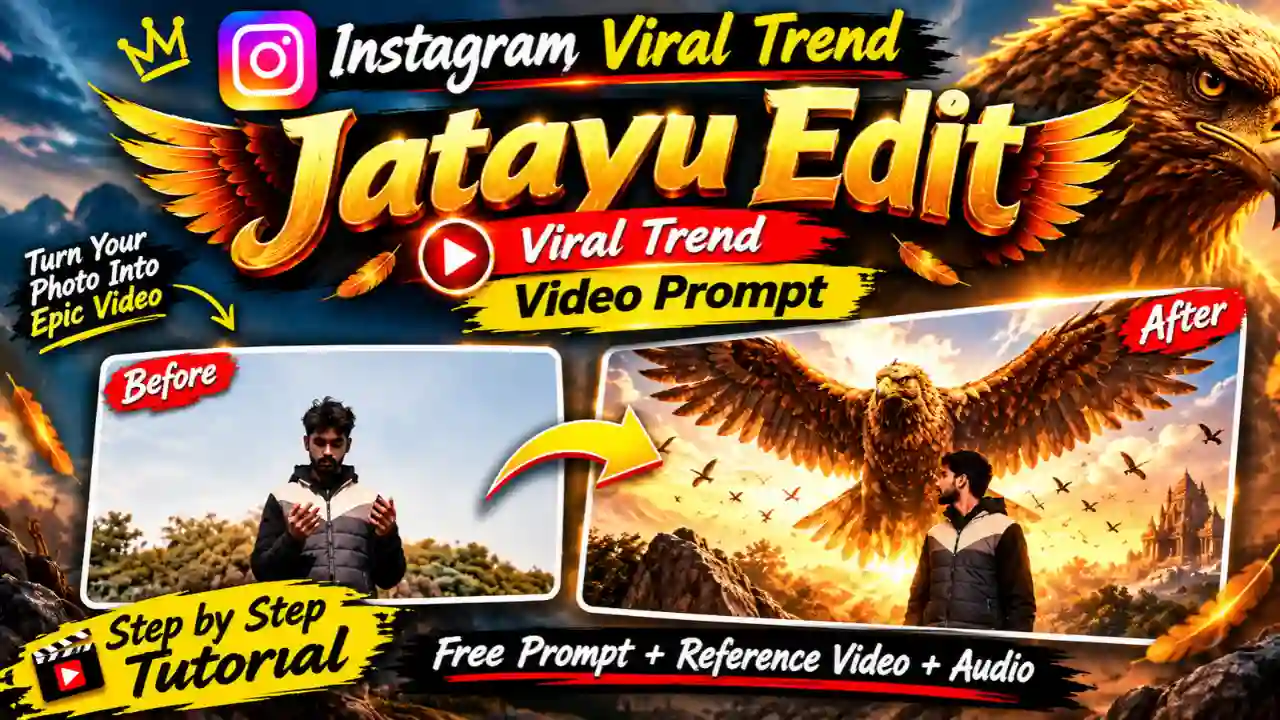
The Jatayu AI Video Editing trend is becoming popular on Instagram Reels. A giant mythical eagle rises up from the ground behind the person in this cinematic effect, with enormous wings to create a powerful and magical atmosphere. The concept is inspired by the mythological character Jatayu who appears in the Ramayana. In addition, the flight of birds along with the golden sky gives a cinematic look to the video.
You can re-create such a Jatayu video with the help of your own picture and video. You only need to use Google Flow, and the whole editing process will be easy for you. In this tutorial, you will see a free Jatayu AI video editing prompt. You will have reference video instructions, information about audio, and editing guide.
Why Is the Jatayu AI Video Edit Trending on Instagram?
The Jatayu symbolizes bravery, sacrifice, and dedication in the Ramayana. Thus, this mythical character makes an immense emotional attachment with Indian audience. The viral video editing is based on the combination of mythological and modern AI effects.
A human is standing quietly, and a big reddish-brown eagle appears behind him/her. Moreover, the eagle spreads its huge wings, while there are some birds flying around. The golden environment turns everything into a cinematic shot. This particular combination makes the Jatayu AI video ideal for Instagram Reels. Also, one can customize the effect by adding their photos and a raw video footage. You can also explore about How to Create Long AI Story Videos.
Jatayu AI Video Editing Prompt for Google Flow
Here I will give you two video prompt to create Jatayu AI Video. First one is very effective while using a proper reference video and image but second one you can use without a video reference, if you only have photo. You can get reference video and audio from our Telegram Channel.
Before generating your video, you should prepare all necessary files. There are four significant guidelines that will help you get better results.
- Mute Reference Video: Make sure the reference video is uploaded without any sounds. Videos with sounds can be problematic during generation.
- Clear Front Photo: It should contain the picture of your face.
- Right File Naming: The reference video file should be called @video1 and the photo should be @image1.
- Aspect Ratio: Select 16:9 landscape to match the reference video aspect ratio.
Copy the following prompt and paste it into Google Flow.
✨ Video Prompt 1
✨ Video Prompt 2
How to Create a Jatayu AI Video Using Google Flow
You can create this trending AI video for free without having any professional editing experience. You just need to follow the given below steps.
Step 1: Open Google Flow: Use your browser to access Google Flow. Login using your Google account.
Step 2: Initiate a New Project: Create a new project in the workspace. Choose the video generation workflow in case it is available.
Step 3: Upload Reference Images: First, upload the muted Jatayu reference video. After that, upload your own photograph as an image reference.
Step 4: Choose Dimensions for the Video: Choose the 16:9 aspect ratio. The duration of the reference video should be used for the generation process.
Step 5: Copy & Paste the Prompt for Jatayu: Copy the prompt provided above and paste it into the Google Flow prompt box.
Step 6: Generate AI Video: Click on the Generate button and wait until the video is generated.
Step 7: Download Your Video: Review the generated video. In case your face is not looking the same, try uploading another photograph.
How to Add Jatayu Background Music to Your Video
Once your AI video is generated, you can insert background music according to your preferences. Edits, CapCut or VN Video Editor can be used to do so.
- Save the AI generated video of Jatayu using Google Flow.
- Open Edits or CapCut or VN Video Editor.
- Import the generated video in a new project.
- Insert the audio of the actual Jatayu clip on your timeline.
- Synchronize the timing of audio according to the video.
- After previewing your edited video, export it.
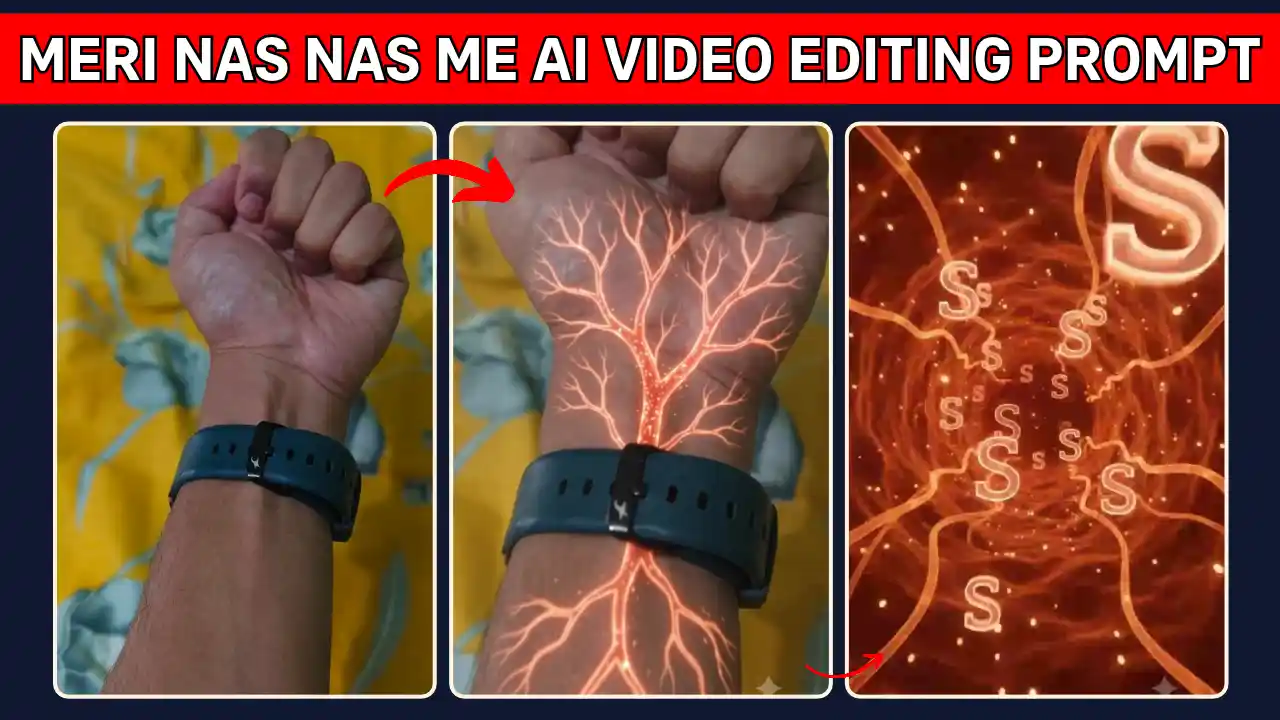
Finally, upload your personalized Jatayu AI video on Instagram Reels and write an appropriate caption along with hashtags. You can also explore our Meri Nas Nas Me AI Video Editing Prompt.
Best Tips for Making an AI Video of Jatayu More Realistic
You just need to follow the given below easy tips to enhance your final Jatayu video quality.
- Ensure to have a high-resolution picture with natural lighting.
- Make sure that your face is clearly visible in the reference image.
- Do not wear sunglasses, hats, or any accessory covering your face.
- Upload the reference video always without sound.
- Always keep the right reference order while uploading images.
- Always use the negative prompt to ensure that no unnecessary visual modifications occur.
- Generate various versions if there is any change in your face and eagle.
Additionally, select a picture with natural expressions on your face.
Conclusion
Viral Jatayu AI Video Editing help us to create a cool combination of mythological characters with artificial intelligence technology. Using Google Flow, you will be able to make a cinematic flying eagle with your picture or with the combination of your raw video footage.
You just need to go though the tutorial, copy the Jatayu AI prompt for free and create your personalized Jatayu AI video. After that, just add the appropriate background music and upload it to Instagram Reels. Give viral Jatayu editing a try and make your own mythological cinematic video!
Related AI Video Editing Prompts You May Like
- Sheru Bhai AI Video Editing Prompt
- Funny Snake Video Prompt
- Trending Aura Farming Korean AI Video Editing Prompt
- Zombie Apocalypse AI Video Editing Prompt