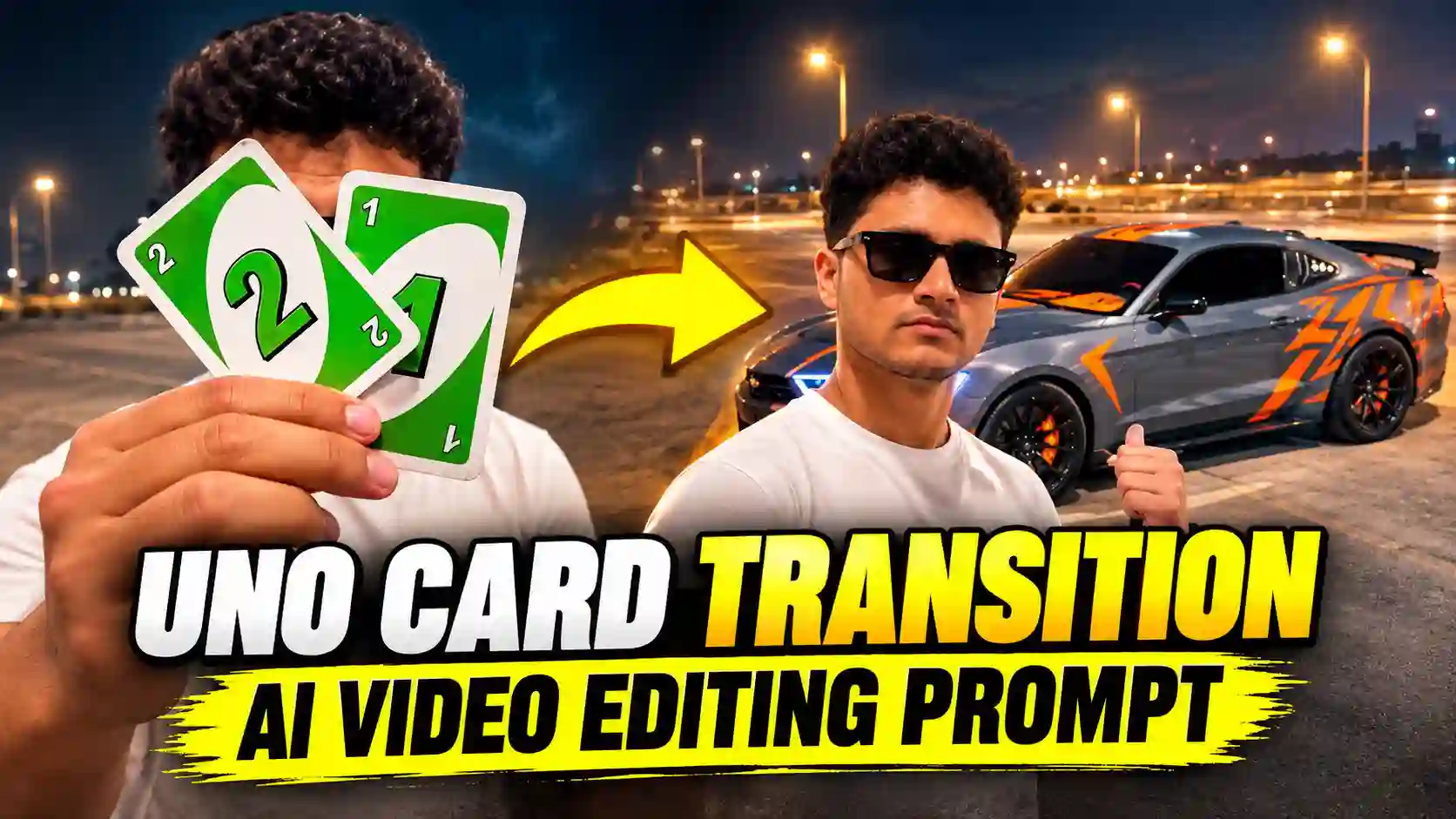
The Uno Card Transition AI Video Editing Prompt is very useful readymade AI video editing prompt to combines creative card movements with cinematic car reveals. The Uno Card Transition AI Video is gaining attention on social media due to its unique & smooth transitions. Moreover, you can easily create this stylish video using AI tools like Google Flow or Google Gemini.
In this post, I will explain you how to make such unique Uno card transition video using your own photo. Here, you will also get a readymade prompt to create such realistic video. I will also provide you the step by step process to create a realistic Car Reveal Video for Instagram Reels, YouTube Shorts, and TikTok. You can try our Trending Mercedes Car AI Video Editing Prompt.
What is Uno Card Transition AI Video Editing?
Uno Card Transition AI Video Editing is a creative video trend featuring a card-based vehicle reveal. First, a person enters the frame while holding a two colored card, most viral video show card no. 2 and 4. Next, he or she move the card toward the camera until it covers the screen and then the person lowers the card, a luxurious car appears in the background. The reveal creates an impressive transition without requiring complicated manual editing. Furthermore, you can customize the card number, vehicle model, background, and outfit.
For example, two green card displaying the number 2 & 4 which can reveal a car like in the reference video. This combination creates an eye-catching cinematic effect for short-form videos. You can also like our Viral Car Jump Entry Reels Video Editing Using AI Prompt.
What You Need to Create the Uno Card Transition Video
To make Uno card transition video using AI video editing prompt, you must have a clear reference photo of yourself, signup & login to Google Flow or Google Gemini or another compatible AI video generator, right video editing prompt and a reference video. You also need to have video editing software like CapCut or VN Editor or Edits along with music which match the vibes.
Additionally, before generating your video choose a reference video and save it for vehicle and background. This helps you maintain a consistent visual style throughout the process.
Uno Card Transition AI Video Editing Prompt
✨ AI Prompt
How to Create the Uno Card Transition Video With Google Flow
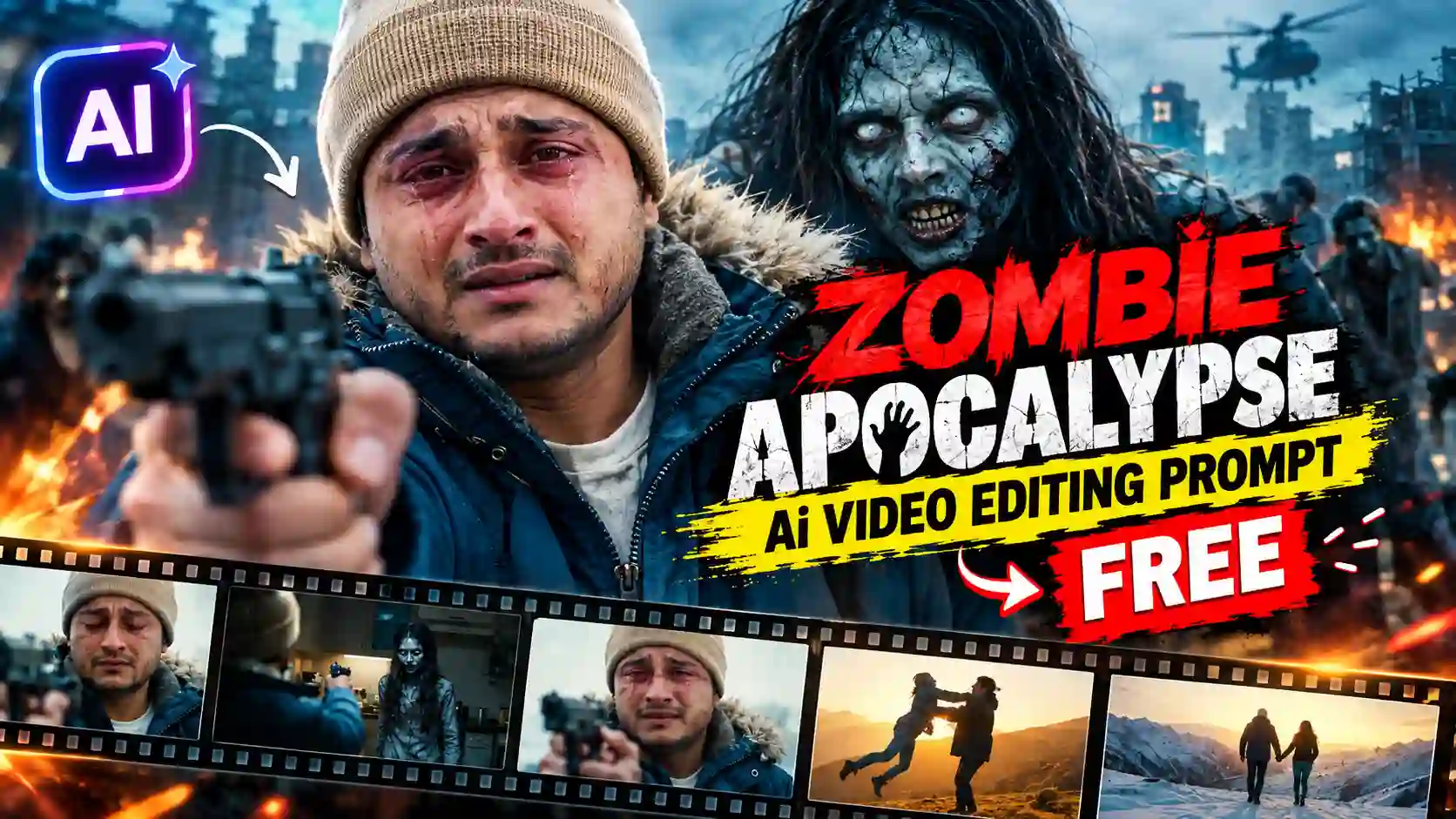
To create Uno Card Transition Video, you must have a clear reference image. Now, go to Flow AI and signup and logging to it. Here, you need to create a new project. Then choose Omni flash model, 9:16 ratio for reels video. Now, copy the above prompt and pate it to the prompt box. Then, send it to Flow AI generation process. After few second you video will be ready. Verify the final AI generated video for any mistake, if everything is ok then save the video for further editing process. You can also explore our Zombie Apocalypse Ai Video Editing Prompt.
Google Gemini Uno Card Transition AI Video Editing Prompt Steps
You can also use Google Gemini to create such Uno Card Transition video. First, go to Google Gemini Website or application. Then select Pro Extended model and tap on plus icon to choose video option. Now, again tap on pulse icon and upload a clear reference photo of yourself, you can also choose character sheet if its available. Now, copy the above prompt and paste it on the respective prompt box. Finally, tap on send button to go with the AI video generation process. After few minutes you video will be ready. Remember to verify the final video before saving because sometime AI might make mistakes. If you get any wrong output then process with same steps to get the best result. You can also explore Car Roof Backflip Stunt AI Video Editing Prompt.
How to Edit the Final Video in CapCut or VN Editor or Edits
After your AI generated video ready, import it on any video editing software or app like CapCut or VN Editor or Edits. Import the video on the editing environment. Here, you must trim unnecessary footage and keep the reveal timing smooth. If needed you can adjust brightness, contrast, and saturation. Avoid excessive transitions and filters. Instead, let the card movement create the main visual effect. Must add suitable background music that matches the card movement for reels edit. Finally, export the video in high quality.
Tips for Better Uno Card Transition AI Videos
Choose a clear reference well lit photo which helps the AI maintain recognizable facial features. Upload a reference video which have no sound and also in high quality. Make sure that the card number and vehicle remain consistent. Avoid exaggerated gestures and unrealistic camera motion. Compare the results and select the cleanest reveal. You can also Create Viral Maa Parvati AI Video with Prompts.
Conclusion
I hope that you understand the above tutorials to create Uno Card Transition AI Video. You can generate your own cinematic car reveal videos using your own photo, right prompt and an AI video generator. You must edit the final AI generated video with any editing apps as I said on this post to improve final result and add music of proper vibes. You can generate the raw footage of Uno Card Transition AI Videos with the help of Google Gemini or Flow AI in few minutes. You just have to follow the steps explain above. Although, if you still have any queries then let me know on the comments below.