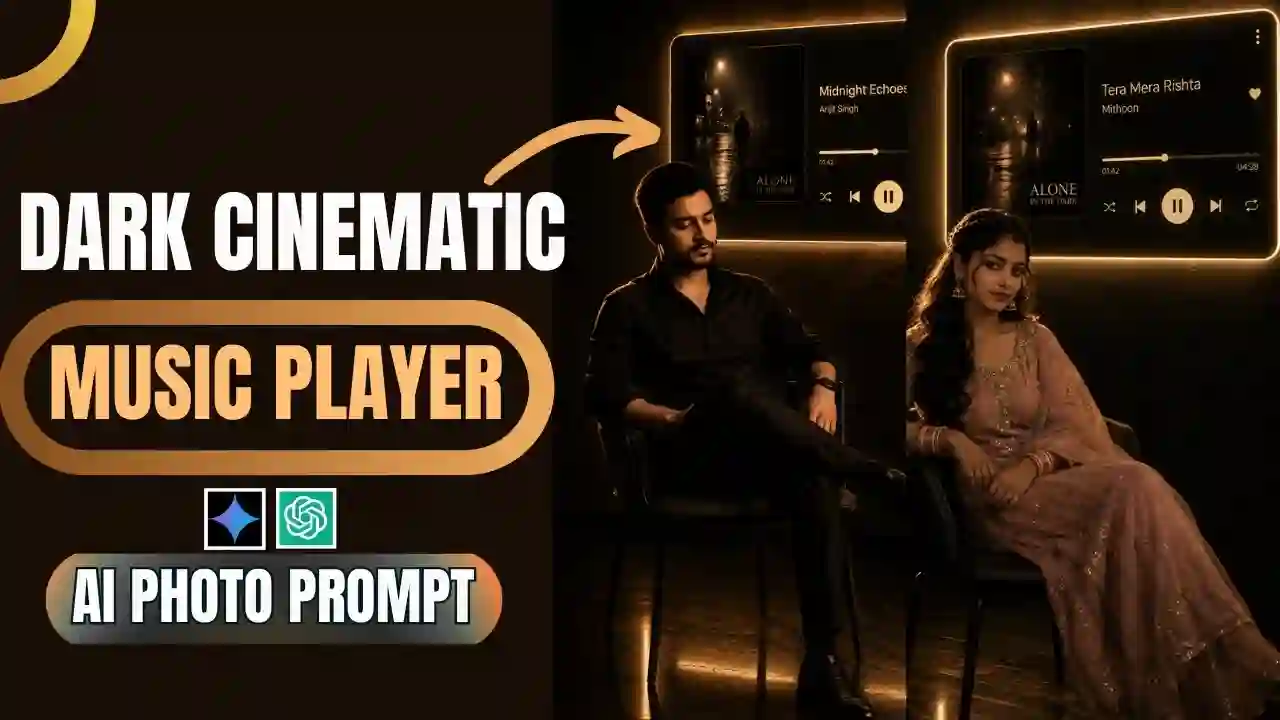
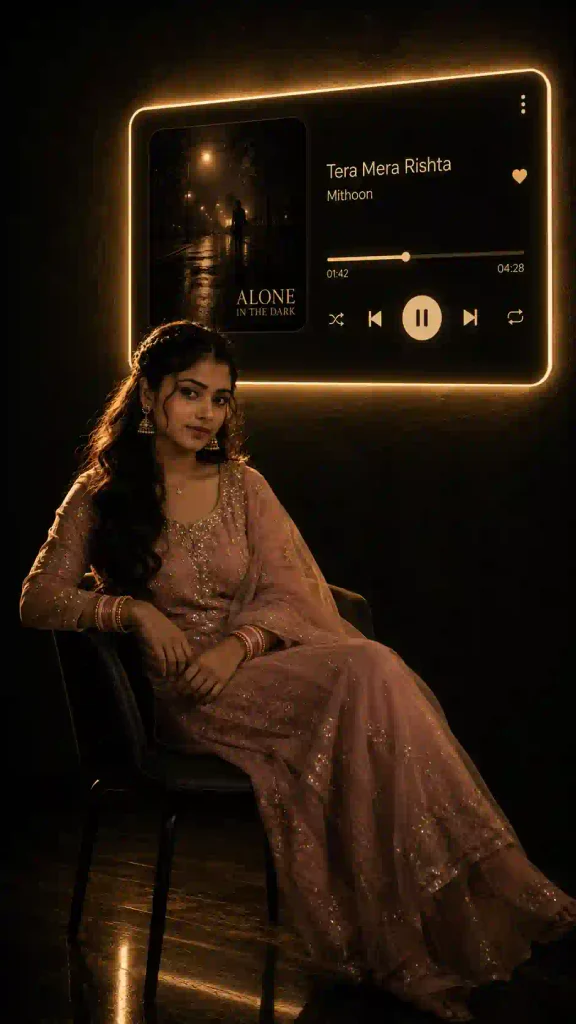
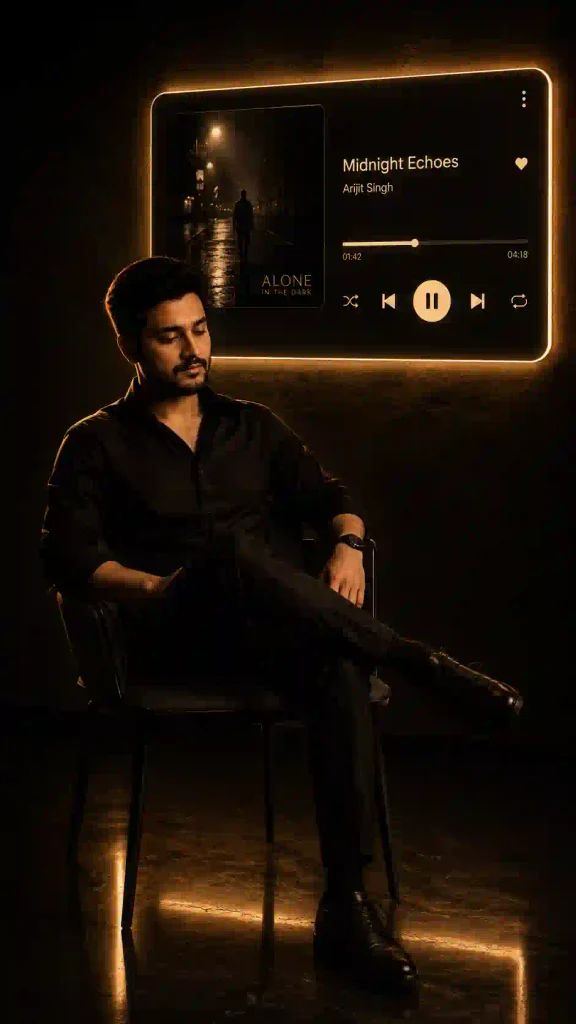
Cinematic Music Portrait AI Photo Prompt is perfect for creating Cinematic Music Player Wall Effect. You may have seen such type of photos on various social media platform especially on Instagram. In this type of moody AI photo, someone is sitting quietly in a dark room and a large glowing music player appears on the wall behind him or her. This look very simple and clean but it has a surprisingly cinematic vibes. A dark room, soft golden light, a relaxed pose, and your favourite song displayed on a futuristic music player can transform your portrait into something that looks like a scene from a movie.
I first came across this style because of the glowing music-player panel in the background. The picture itself is very simple but the deep shadows and the warm lighting combined with your favorite song create a totally different feeling. As long as you have a clear picture and the right cinematic music portrait AI prompt, you can create your own photo using an AI image editor tool. You can then change song and artist, as well as the lighting, pose and even mood of the image to make it even more personal.
In this tutorial, you will find ready-to-copy photo prompts for a cinematic music player wall for girls and boys. I will explain to you how you can use them and provide you with a few practical tips to get better results. You can explore our latest creative butterfly-effect AI photo editing ideas.
What Is the Cinematic Music Portrait AI Trend?
The cinematic music portrait is an unique AI photo-editing style, which has been created around a dark environment with highly cinematic effects. In this photo a person is sitting on a simple chair in a dark room. A futuristic music-player is hanging behind him or her. Music-player glow with soft warm light. It also show an album cover, song title, artist name, progress bar, and playback controls. The combination of shadows and warm light make the photo a quiet, emotional and premium look.
The trend is interesting because one can personalise the music player with any song and even artist of his or her choice. Thus, instead of generating some random AI image, one can create a digital album cover for themselves. If you enjoy cinematic AI photo editing prompts, explore our rainy-day portrait ideas.
Cinematic Music Portrait AI Prompt for Girls
If you want to create the popular dark music-player portrait using a female photo, copy the prompt below.
✨ AI Prompt
How to change the song and artist
Don’t forget to replace: [SONG NAME] with the song you want to display. And replace: [ARTIST NAME] with the artist’s name. For example, you could use your favourite romantic, sad, lo-fi or Bollywood song to create completely different versions of the same concept.
Cinematic Music Portrait AI Prompt for Boys
Want to create the same aesthetic with a male photograph? Use this version:
✨ AI Prompt
How to Create the Cinematic Music Player Wall Photo
With your photo and prompt ready, making an image is pretty straightforward.
Step 1: Choose a Clear Photo
To start with, you need a good quality photo of yourself. The best starting point is a clear face shot with natural lighting and a simple background. If possible, use a photo where your pose and body are clearly visible.
Step 2: Open an AI Image Editor
Open your preferred AI image-generation or editing tool. You can use ChatGPT for this type of image editing.
Step 3: Upload Your Photo
Upload the reference photo you want to use. If you’re making a female version use the female prompt. If you’re making a male version use the male prompt.
Step 4: Copy the Prompt
Copy the complete prompt from this article and paste it on the AI prompt box. Make sure to replace [SONG NAME] and [ARTIST NAME] with your preferred music details before generating the image.
Step 5: Generate the Image
Send the instructions to the AI and wait for the result. The exact output can vary from one generation to another, so don’t be surprised if your first result isn’t perfect.
Step 6: Check the Final Image
Take a moment to inspect the generated photo.
Pay particular attention to:
- Facial identity
- Hair and skin details
- Hands and fingers
- Clothing
- Body proportions
- Chair and sitting position
- Music-player panel
- Song and artist text
- Lighting
- Floor reflections
If something looks wrong, you can ask the AI to correct that specific part.
You can also try out our Aesthetic Profile Picture DP Editing Prompts.
How to Fix the Music Player Text
Another common issue is incorrect text. The AI may spell the song or artist name incorrectly, or some of the playback controls may not look perfect. You can try:
Keep the complete image unchanged. Correct only the music-player text. Make the song title and artist name clearly readable and spelled exactly as provided. Do not change the person, lighting, background or composition.
If the text still isn’t accurate, you can generate the image first and add the song information manually using a photo-editing or design application.
Best Settings for This AI Photo
If you’re creating this image specifically for social media, these settings are a good starting point:
| Setting | Recommended Option |
|---|---|
| Aspect Ratio | 9:16 Vertical |
| Lighting | Low-key cinematic |
| Mood | Dark, calm and dreamy |
| Background | Minimal dark room |
| Glow | Warm white / golden |
| Camera Style | Cinematic photography |
| Detail | High / photorealistic |
| Best Use | Instagram Stories, Reels, WhatsApp Status |
How to Create Different Versions of the Same Photo
One of the best things about this prompt is that you can reuse the same basic concept. For example, you could create:
- Sad Song Version: Use a darker room, slower-looking progress bar and subdued lighting.
- Romantic Version: Use a softer golden glow and a warm, intimate atmosphere.
- Lo-Fi Version: Add subtle rain-inspired album artwork and a cool, quiet mood.
- Night Drive Version: Use an album cover showing a lonely city road at night.
- Minimal Version: Remove almost all background details and focus on the person and music player.
You can even create a series of portraits using different songs while keeping the same visual identity. Looking for festival-themed AI photo editing idea? Try our 9 Raksha Bandhan AI Photo Editing Prompts.
Cinematic Music Portrait AI Photo Prompt 2026: FAQs
Which AI tool can I use for this cinematic music portrait?
You may be able to use an image editor for AI that offers the functionality of uploading a reference photo and instructions for editing the image. Some examples include ChatGPT and Gemini.
May I use my own song and artist name?
Yes. Substitute [SONG NAME] and [ARTIST NAME] into the prompt to input the information about the song and the artist that you would like to be included.
Do I need a photo taken with a professional camera?
No. Professional equipment is not needed. But a clear and relatively high-quality picture with visible facial features will provide you with more options to start with.
Can I create more than one photo with different songs?
Yes, you can use the same prompt structure with different songs, moods, or photos every time you want a new result.
Can I create multiple images with different songs?
Yes. Simply change the song and artist information and generate another version. You can also experiment with different album artwork, poses and lighting moods.
Final Thoughts
This trend takes simple portraits of people and turns them into really interesting images by using the idea of a cinematic music portrait. It doesn’t require a complex setting or multiple visual effects. It only requires a dark background, a cozy chair, some golden light and a glowing music player.
Start with a clear image, pick the right prompt from above, select your favorite song, and see what the AI creates. If the first result is not what you wanted, try making minor adjustments rather than starting completely from scratch. Feel free to experiment as well, using different songs, album artwork, costumes, and moods until you get something unique.
If you create your own cinematic music portrait, which song would you put on your glowing music player? Let me know in the comments below or you can also share the story with us on Instagram as well.